User Offboarding Guide
This guide has been made as a checklist item for offboarding users. This covers all the major parts. Read through each section thoroughly.
Table of Contents
Microsoft Services
Each user has a Microsoft account associated with them. Start by going to
Azure->Users. Find the User and go to their properties and disable their account underSettings. Remove theirCompany nameas well.Remove the users assigned licenses. This must be done via
Intune->Users->Licenses and apps.User accounts must not be deleted in the case that they are rehired or access is needed into their account.
It is recommended to reset the users password and their mobile authentication method.
Software
Most company software uses Microsoft SSO for log in, there are a few exceptions that have their own seperate accounts.
Delete their profile from the Prtinul VPN server.
(Engineers only) PDM, coordinate with members of the engineers to make sure that all of their files are checked in on PDM. Only then can you delete their PDM account.
(Engineers only) If they have a standalone SolidWorks Professional license, it must be disabled on the users laptop. See the Engineering Laptops section.
(Software Engineers only) Coordinate with the manager in charge of the company’s Github account. They will need to remove the Github access for the user.
Revoke the access for their Bitwarden account.
Coordiante with the users manager if there is any other department specific software that needs to be shut off.
Windows Laptops
Laptops must be retrieved at end of employment. If the employee is remote, create a fedex prepaid label for shipping the laptop. Laptops MUST be backed up before they are wiped. Employee emails are automatically backed up by Microsoft. See Engineering Laptops for beginning the backup process for SOLIDWORKS users.
Copying the entire drive is unnecessary, as most files are Windows system configurations rather than employee data.
You will need to log into the users computer. Start by resetting their password. Afterwards, in their Azure profile add an authentication method. You will need to add a
Temporary Access Pass. Set it to only be active for a few hours.Reassign the users Microsoft License temporarily. Log into the users laptop and reactivate their One Drive.
Create a folder on the desktop titled as the users first and last name. Create a “One Drive” folder inside of that desktop folder, copy everything from their personal One Drive into that folder.
Navigate to
C:\Users\'USERS NAME'.Almost all user data is stored here. Copy everything except for any OneDrive folders. Place the copies in the desktop user folder. Ensure that all the documents, downloads, pictures, etc. copied over correctly.For Engineers that use SOLIDWORKS you will need to copy their SOLIDWORKS data files as well. Copy
C:\SOLIDWORKS Data&C:\Program Files\SOLIDWORKS CorpFor Software Engineers you will need to find where they stored repositories and code files locally. Unfortunately, there is often no set location for this. Look for any folder named
Github. Look for any folders that might use the same name as their code editor.Be thorough and double check that you copied all the files. Make sure to look in the root drive for any folders that the user might have made themselves.
Anything saved as a backup may be made accessible for other members of the company. Refrain from saving data that is clearly personal to the user with no relation to work-related purposes. There is no reason to unnecessarily expose personal information.
If not already installed, install
Nanazip. Compress the desktop user folder with Nanazip, use 7z in maximum compression for best results. Transfer the compressed file to the current backup method.
Engineering Laptops
SOLIDWORKS deactivation is necessary BEFORE wiping an engineers laptop. Due to the way SOLIDWORKS handles their license activation and deactivation it cannot be done remotely without complications. This applies to users that have a Standalone SOLIDWORKS Professional License.
Boot up the users SOLIDWORKS application. In the top right select the
?icon. Go down toLicensesand thenDeactivate.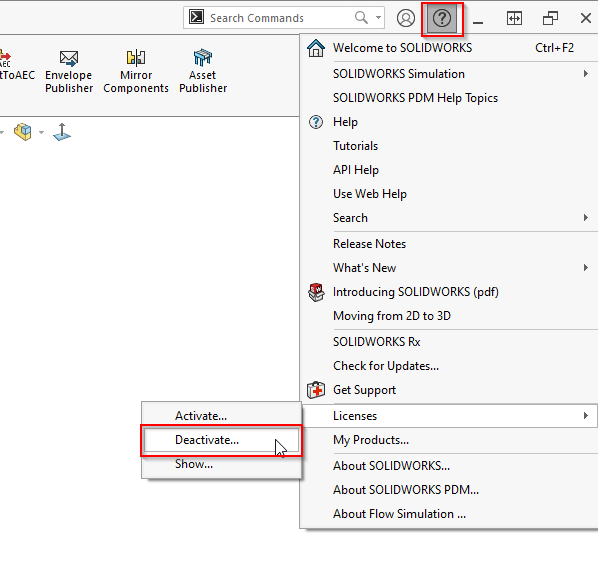
license-deactivation This will display a new menu that follows the same process as the license activation in the guide solidworks_upgrade_user. Select all products to deactivate and enter the users email.
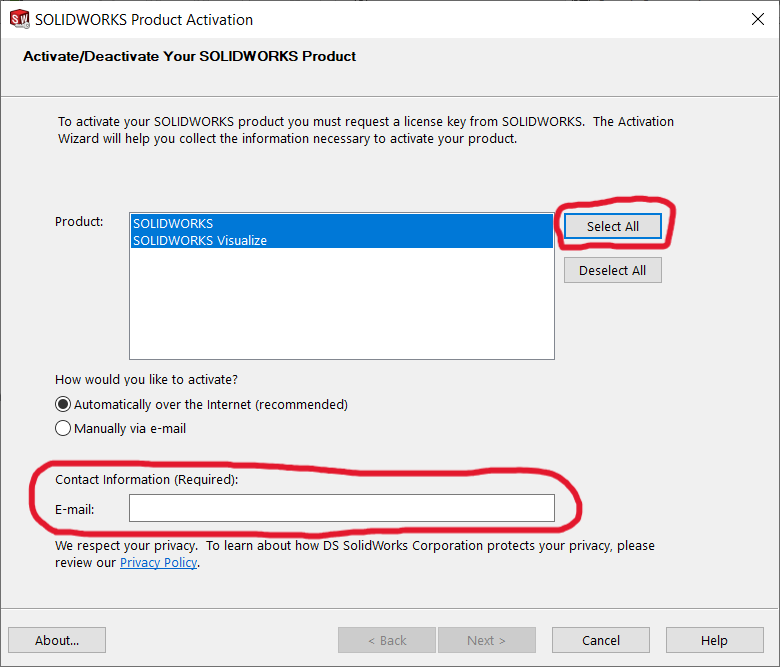
licenses-deactivation-menu If a users laptop is wiped, or experiences a hard drive failure before their SOLIDWORKS licenses can be deactivated you must contact GoEngineer. They can provide support and will likely have to “permanently disable” the license on their end.